

Klaviyo Custom Events: Ecommerce Marketer’s 2026 Guide
TL;DR:
- A Klaviyo custom event is a user-defined action that tracks customer behaviors beyond default integrations.
- It allows marketers to trigger flows and build segments based on specific, brand-specific customer actions.
A Klaviyo custom event is a user-defined, trackable action that records specific customer behaviors beyond what Klaviyo tracks by default. Standard integrations capture predictable actions like “Placed Order” or “Opened Email.” Custom events capture everything else: a product like, a referral submission, a quiz completion, a loyalty point redemption. For ecommerce marketers who want to trigger flows and build segments around the full picture of how customers engage, understanding what a Klaviyo custom event is and how to use one is not optional. It is the difference between generic automation and marketing that actually fits your customer.

What is a Klaviyo custom event and how does it work?
A Klaviyo custom event is a marketer or developer-created record of a specific customer action, sent to Klaviyo via the Events API or Klaviyo.js. Each event includes three core components: a metric name (the label for the action), a timestamp, and an optional set of properties that describe the action in detail. Klaviyo uses this data to trigger flows and power segmentation filters, making custom events one of the most flexible tools in the platform.
The distinction between a metric and an event matters here. Think of a metric as a recipe and an event as a single meal cooked from that recipe. Metrics represent event definitions; events are the individual timestamped instances. A metric called “Referred Friend” might have thousands of event instances attached to it, each with its own properties. Marketers build segments and flows on the metric level, while the event level holds the granular data.
Custom events exist because no two ecommerce brands behave identically. A subscription box brand needs to track “Skipped Delivery.” A beauty retailer needs to track “Completed Skin Quiz.” Neither of those actions exists in Klaviyo’s default event library. Custom events fill that gap, and they do it without requiring a pre-built integration.
How to create Klaviyo events using the API and Klaviyo.js
Setting up custom events in Klaviyo requires choosing between two tracking methods: client-side and server-side. The right choice depends on the sensitivity of the data and the reliability you need.
Client-side tracking with Klaviyo.js
Klaviyo.js runs in the browser and uses your public API key (also called your site ID). It is the faster option to implement and works well for tracking front-end interactions like button clicks, page views, or quiz completions. The setup is lightweight and does not require a backend.
Server-side tracking with the Events API
The server-side API uses your private API key and sends data via JSON HTTP POST requests. Klaviyo supports multiple server-side languages. This method is more reliable because it does not depend on the customer’s browser. Ad blockers and poor connections can silently drop client-side requests, creating gaps in your data. For critical transactions or any event tied to revenue, the server-side API is the correct choice.
The Events API supports a burst rate limit of 350 requests per second. That is high enough for most ecommerce operations, but high-volume flash sales or viral referral campaigns can approach it quickly. Build retry logic into your implementation from the start.
Pro Tip: Always include a unique_id in your event payload. If you omit it, Klaviyo defaults to the timestamp. If the same event fires twice within the same second (a common retry scenario), Klaviyo will create a duplicate. A unique ID prevents that entirely.
The numbered steps for a basic custom event implementation look like this:
- Choose your tracking method (Klaviyo.js for front-end, Events API for back-end).
- Construct your JSON payload with a metric name, timestamp, and properties.
- Include a
unique_idto prevent duplicate events. - Send the event and verify it appears in the Klaviyo activity feed for the profile.
- Test segmentation filters and flow triggers using the new metric before going live.
How do standard Klaviyo events differ from custom events?
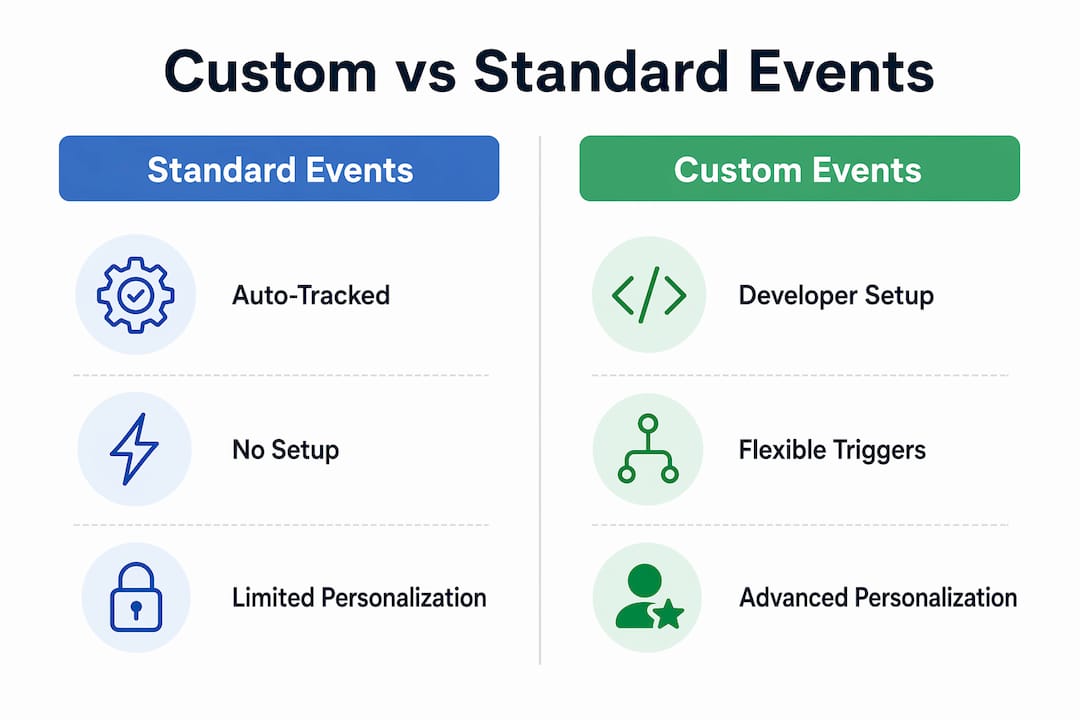
Standard Klaviyo events, sometimes called native metrics, are pre-built actions that Klaviyo tracks automatically through its integrations. “Placed Order,” “Viewed Product,” and “Started Checkout” are examples. They require no custom code and appear in your account the moment you connect a supported ecommerce platform.
Custom events extend this default behavior to capture actions that native integrations miss. The practical difference shows up clearly in these examples:
- Native event: “Placed Order” fires automatically when a customer completes checkout.
- Custom event: “Added Like” fires when a customer clicks a wishlist button you built yourself.
- Native event: “Opened Email” is tracked by Klaviyo’s own sending infrastructure.
- Custom event: “Referred Friend” fires when your referral program records a successful share.
- Native event: “Started Checkout” triggers abandoned cart flows out of the box.
- Custom event: “Completed Loyalty Tier” fires when your loyalty app promotes a customer to a new tier.
The table below shows the core differences at a glance.
| Feature | Standard Klaviyo events | Custom events |
|---|---|---|
| Setup required | None (auto-tracked) | Developer or API implementation |
| Flexibility | Fixed to integration defaults | Fully defined by your team |
| Use in flows | Yes | Yes |
| Use in segments | Yes | Yes |
| Property control | Limited to integration output | Full control over payload |
| Best for | Universal ecommerce actions | Brand-specific behaviors |
Custom events drive new flow triggers based on non-standard customer actions that standard integrations simply cannot capture. That is their core value. They give marketers the ability to build automation around the specific ways their customers actually behave, not just the generic actions every store shares.
Best practices for structuring custom event data
The way you structure your event payload determines whether the data is useful inside Klaviyo. A poorly structured event can fire correctly and still be invisible to your segment builder.
The most common mistake is nesting properties inside sub-objects. Klaviyo requires all event properties at the root level of the JSON payload. If you nest a product name inside a product object, Klaviyo will not surface it in segmentation or flow filters. The data arrives but does nothing. Every property you want to filter on must sit at the top level.
The second critical rule involves naming. Metric property names must differ from profile property names. If your event has a property called email and your profile also has a field called email, Klaviyo will suppress the metric property in the segment builder. Use distinct names like referred_email or quiz_result_skin_type to avoid the conflict.
Beyond structure, the richness of your event properties directly controls how far your personalization can go. Sending detailed event properties like item names, prices, categories, and referral sources unlocks product-specific winback campaigns, category-based cross-sells, and referral-source attribution. Without that granularity, your flows can only say “you did a thing.” With it, they can say “you liked this specific product in this category at this price point.”
Pro Tip: When testing a new custom event, check the profile activity feed in Klaviyo immediately after firing the event. If the event appears but the properties are missing from your segment filters, nesting is almost always the cause.
Key structural rules to follow for every custom event:
- Place all filterable properties at the root level of the JSON payload, never nested.
- Use a
unique_idon every event to prevent duplicates during retries. - Name metric properties differently from profile properties to keep both accessible.
- Include actionable data points: product ID, product name, price, category, referral source.
- Use ISO 8601 timestamps for consistency across time zones.
Practical use cases for custom events in ecommerce
Custom events become most powerful when you connect them directly to flows and advanced segmentation strategies. The examples below show how real ecommerce brands use them.
Abandoned browse flows from “Viewed Product” events. Klaviyo’s native browse abandonment requires a pre-built integration. If you run a headless storefront or a custom-built product page, you can fire a custom “Viewed Product” event with the product ID, name, and price. That event then triggers a browse abandonment flow with the exact product the customer viewed, including dynamic content pulled from the event properties.
Referral and loyalty triggers. A “Referred Friend” event fires when your referral program records a successful share. You can use it to send an immediate thank-you flow, then segment customers who have referred three or more friends into a VIP group. The same logic applies to loyalty tier upgrades. A “Completed Loyalty Tier” event triggers a congratulations flow and unlocks a tier-specific discount.
Soft engagement tracking. Tracking subtle behaviors like product Likes or wishlist adds gives you a signal that a customer is interested but not yet ready to buy. A “Added Like” event can trigger a low-pressure flow three days later, showing the liked product alongside social proof or a limited-time offer. This is a use case that standard integrations cannot support at all.
Winback and cross-sell campaigns. When a customer completes a quiz or submits a preference survey, a custom event captures their answers as properties. Those properties power personalized email flows that recommend products matching their stated preferences. Combined with purchase history, this creates cross-sell campaigns that feel genuinely relevant rather than algorithmically generic.
Campaign impact measurement. Custom events also work as measurement tools. Fire a “Clicked Promo Banner” event when a customer interacts with a campaign element on your site. Track which profiles converted after that event. Over time, you build a clear picture of which on-site touchpoints drive revenue, and you can segment accordingly for future campaigns. This connects ecommerce keyword research tips and on-site behavior into a single, trackable data stream.
Key Takeaways
Custom events are the mechanism that turns Klaviyo from a standard email tool into a fully personalized automation engine built around your specific customer behaviors.
| Point | Details |
|---|---|
| Definition is precise | A custom event is a user-defined action sent via Events API or Klaviyo.js, not a native metric. |
| Structure determines usability | All event properties must sit at the root JSON level or they will not appear in segmentation filters. |
| Naming conflicts break filters | Metric property names must differ from profile property names to remain accessible in the segment builder. |
| Use unique IDs always | Including a unique_id in every payload prevents duplicate events during retries. |
| Server-side beats client-side for critical data | Ad blockers and connection failures can drop client-side events; use the server-side API for revenue-critical actions. |
What I’ve learned from building custom event systems for ecommerce brands
The biggest mistake I see is not technical. It is organizational. Marketing teams request custom events, developers build them, and nobody agrees on the property names or structure before a single line of code is written. The result is a Klaviyo account full of events that fire correctly but cannot be used in segmentation because the properties are nested, named wrong, or missing entirely.
The fix is a shared event schema document. Before any implementation starts, marketing and development should agree on every event name, every property name, and every expected value. That document becomes the contract. It prevents the naming conflicts that break segment filters and the nesting mistakes that make properties invisible.
Testing is the other area where teams consistently cut corners. Firing an event and seeing it appear in the activity feed is not enough. You need to verify that every property shows up in the segment builder and that the flow trigger fires correctly in a test profile. I have seen brands go live with custom events that looked correct in the feed but produced zero usable segments because the properties were one level too deep.
Custom events also need ongoing maintenance. Customer behavior evolves, campaigns change, and the events you built 18 months ago may no longer reflect what you actually need to track. Build a quarterly review into your process. Retire events that no longer serve a purpose and add new ones as your product and marketing strategy develop.
— Take
How Take-action helps ecommerce brands get more from Klaviyo
Custom events are powerful, but only when the implementation is clean and the strategy behind them is sound. Most ecommerce teams have the ambition but not the bandwidth to build, test, and maintain a full custom event system while running campaigns at the same time.
Take-action specializes in exactly this. As a dedicated Klaviyo email marketing agency, Take-action handles the full stack: event strategy, implementation guidance, flow architecture, and ongoing refinement. Whether you need to set up your first custom event or rebuild a broken tracking system, Take-action brings the expertise to do it right the first time. Brands that work with Take-action stop leaving automation opportunities on the table and start building the kind of personalized engagement that drives real retention.
FAQ
What is a Klaviyo custom event?
A Klaviyo custom event is a user-defined action sent to Klaviyo via the Events API or Klaviyo.js to track specific customer behaviors not covered by native integrations. It includes a metric name, timestamp, and optional properties that power flows and segmentation.
How do I create a custom event in Klaviyo?
Send a JSON HTTP POST request to the Events API with your private key, or use Klaviyo.js with your public site ID for client-side tracking. Include a metric name, timestamp, and a unique_id to prevent duplicates.
Why won’t my custom event properties show in the segment builder?
Nested properties do not appear in Klaviyo’s segment builder or flow filters. Move all properties to the root level of your JSON payload to make them accessible.
What is the difference between a Klaviyo metric and an event?
A metric is the definition of an action (the recipe), and an event is a single recorded instance of that action (the meal). Segments and flows are built on metrics; the granular data lives at the event level.
Can custom events trigger Klaviyo flows?
Yes. Any custom event can serve as a flow trigger in Klaviyo. Set the flow trigger to “When someone takes an action” and select your custom metric to activate the flow when that event fires.