

Klaviyo Tags Explained: What They Are and How to Use Them
Klaviyo tags are labels that organize your account assets and personalize subscriber messaging. Two distinct types exist, and confusing them is one of the most common mistakes Klaviyo users make.
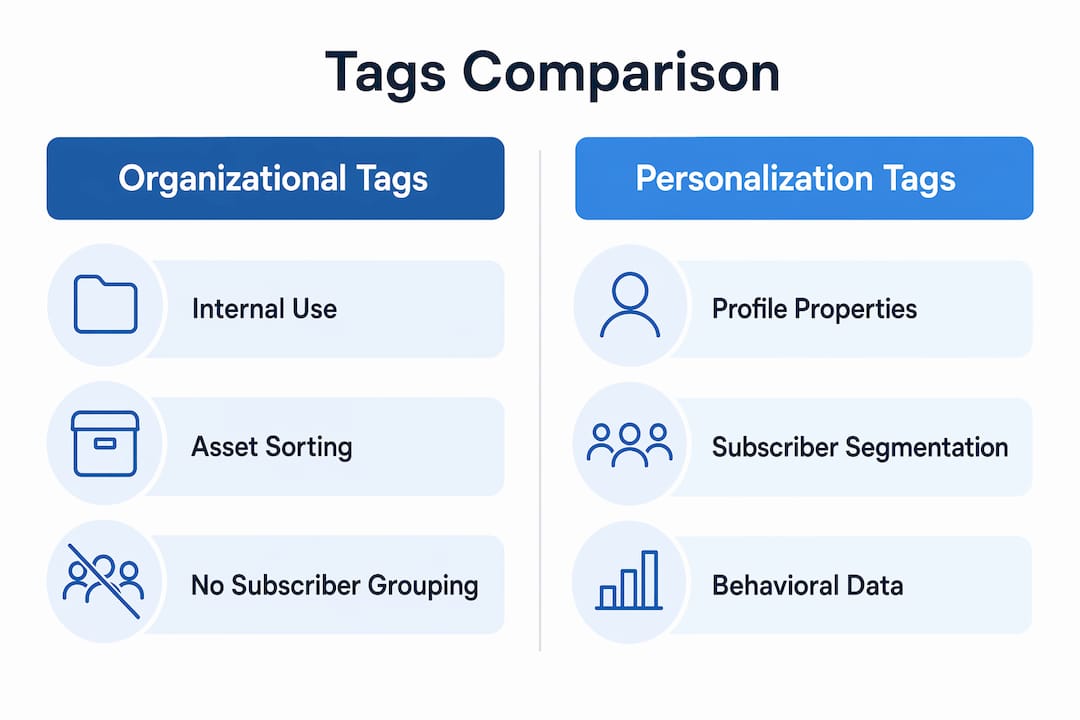
Organizational tags act like internal sticky notes. You attach them to campaigns, flows, lists, and segments to sort and filter your account content. They have nothing to do with subscriber data.

Personalization tags, more precisely called custom profile properties, live on individual subscriber profiles. They capture data like purchase history, preferences, and engagement status, and they power segmentation and dynamic email content.
Here is a quick picture of what each type handles:
- Organizational tags: label campaigns by product line, mark flows by funnel stage, group seasonal assets, delineate team responsibilities
- Custom profile properties: store zero-party data like favorite categories, VIP status, or last purchase date to trigger targeted flows and personalize content
Both types work together. A well-tagged account is easier to navigate, and well-built profile properties make every email feel like it was written for one person.

How to find, create, and manage tags in Klaviyo
Getting your tagging system right from the start saves hours of cleanup later. Klaviyo gives you two places to work with organizational tags: the Tags section in account settings, and on the fly inside any campaign, flow, list, or segment builder.
Finding and creating tags
- Navigate to Tags in your account settings. You will see all existing tags organized under tag groups, with a default group called “Ungrouped Tags” for anything uncategorized.
- Create a tag from the Tags section. Select “Create Tag,” name it in the modal, and it is ready to apply anywhere in your account.
- Create a tag on the fly. When building a campaign, flow, list, or segment, type a new name into the Tags field and select “Create new tag.” Tags created this way land in the Ungrouped Tags group automatically.
- Create a tag group. From the Tags section, name your group (no “:” character allowed), then create tags within it. Note that existing ungrouped tags cannot be moved into a new group retroactively.
Managing tag groups and mutual exclusivity
Tag groups keep related tags together. A group called “Season” might contain “Spring,” “Summer,” “Fall,” and “Winter.” The real power comes from the mutual exclusivity setting: when enabled, only one tag from that group can be assigned to any single item at a time.
Before you enable mutual exclusivity, plan carefully. Once set, this cannot be undone. A group called “Country” with exclusivity means you can never assign both “US” and “CA” to the same campaign, which is exactly the point, but only if that constraint actually fits your workflow.
A few practical rules for keeping your tag library clean:
- Agree on naming conventions with your team before creating tags (use consistent capitalization and spacing)
- Archive or delete tags that no longer apply to any active assets
- Use tag groups to separate tags by category: funnel stage, team owner, campaign type, season
- Tags can be shared across item types, so a single “Holiday 2026” tag can live on a campaign, a flow, and a segment simultaneously
Pro Tip: Many teams skip tagging during the rush of campaign creation and then spend hours searching for assets later. Build tagging into your campaign launch checklist so it never gets skipped.
How to add tags to campaigns and flows
Tags on campaigns and flows serve a different purpose than tags on lists or segments. They are purely organizational, helping you filter your dashboard and coordinate across teams.
Adding tags when creating a campaign
- Go to Campaigns > Create Campaign.
- Name the campaign and select the channel.
- Scroll to the Tags section.
- Type to find an existing tag or create a new one.
- Select Continue to finish drafting.
Adding tags to an existing campaign
- Navigate to the Campaigns tab.
- Check the box next to one or more campaigns.
- Click Add Tags, choose or create a tag, and save.
Tagging flows
- Go to the Flows tab.
- Click the three dots next to the flow you want to tag.
- Select Edit Details, then click the Tags dropdown.
- Select or create a tag, then click Update Flow.
One hard limit: archived flows cannot be tagged. If you need to tag a flow, make sure it is active or draft status first.
Good tag examples for campaigns include product line names (“Skincare,” “Apparel”), campaign type (“Promotional,” “Newsletter,” “Transactional”), or initiative names (“Black Friday 2026,” “Summer Sale”). For flows, tags like “Pre-Purchase,” “Post-Purchase,” “Win-Back,” or “VIP” make filtering your flow library fast. If you want a deeper look at how flows connect to your overall email revenue strategy, Klaviyo flow management is worth reading alongside this guide.
Pro Tip: Agree on a tagging convention with your team before anyone creates their first tag. Inconsistent naming (“blackfriday,” “Black Friday,” “BF2026”) fragments your filters and defeats the purpose entirely.
What personalization tags do and why they matter
Custom profile properties are what most of the email marketing industry calls “email tags,” and they work completely differently from organizational tags. They live on subscriber profiles and store data about who that person is and how they behave.
Klaviyo automatically collects default profile properties like name, location, email address, and first and last active dates. Custom properties go further, capturing whatever your business needs to know:
- Preferences: favorite product category, preferred communication frequency, style preferences
- Engagement status: VIP tier, loyalty points balance, whether a subscriber has opened in the last 90 days
- Purchase history: last order date, total lifetime value, number of orders, specific products purchased
These properties are the engine behind behavioral segmentation. A subscriber tagged with “VIP: true” and “Category: Skincare” can receive a completely different email than someone tagged “New Subscriber: true” and “Category: Apparel,” even if both are in the same campaign send.
There are two main ways to add custom properties to a profile. You can add them manually or via CSV upload, or you can collect them directly from subscribers through sign-up forms and preference center pages. The second method scales without any manual work on your end.
Pro Tip: Use a preference center to let subscribers self-select their interests. The data is more accurate than inferred behavior, and it gives subscribers a reason to stay opted in rather than unsubscribing when content feels irrelevant.
Tagging with custom profile properties also prevents duplicate or conflicting emails, which is a key aspect of how to increase customer retention in ecommerce. If a subscriber already received your welcome series, a property like “Welcome Series: Completed” stops them from entering that flow again. That kind of precision protects your sender reputation and keeps your list engaged. For a deeper look at how these properties connect to personalized email strategies, the connection between profile data and dynamic content is worth exploring.
Organizational tags vs. profile property tags: what is actually different
This is where a lot of Klaviyo users get tripped up. Both are called “tags” in casual conversation, but they operate in completely separate layers of the platform.
| Feature | Organizational tags | Custom profile properties |
|---|---|---|
| Purpose | Organize internal account assets | Store subscriber data for personalization |
| Scope | Campaigns, flows, lists, segments | Individual subscriber profiles |
| Application | Applied by the marketer to account items | Collected from subscriber behavior or input |
| Impact | Filters and workflow navigation | Segmentation, dynamic content, flow triggers |
Organizational tags cannot group profiles. If you want to group subscribers by a shared attribute, you need a custom property and a segment built on that property. Trying to use an organizational tag for that purpose simply will not work in Klaviyo’s architecture.
The mutual exclusivity setting in tag groups deserves extra attention here. Once you mark a tag group as exclusive, that setting is permanent. Plan your group structure before you build it, not after. A group called “Funnel Stage” with exclusive tags like “Prospect,” “First-Time Buyer,” and “Repeat Customer” works perfectly when exclusivity is intentional. Applied carelessly, it locks you into a structure you cannot change.
One more complexity worth knowing: if you use Shopify, Klaviyo creates a “Shopify Tags” property stored as a list data type on each profile. Because multiple Shopify tags can apply to one customer, you must use “contains” logic (not “equals”) when building segments around that property. Many marketers build broken segments by using the wrong operator here.
Pro Tip: Before building any tag group, write out every tag it will contain and decide whether exclusivity makes sense. Sketch it on paper first. Reversing a bad exclusive group structure later means rebuilding it from scratch.
Take-action works with ecommerce brands specifically on Klaviyo tagging architecture, segmentation strategy, and flow setup. Getting the tag structure right early is one of the highest-leverage moves a growing email program can make, and it is one of the first things Take-action addresses when onboarding a new client.
Key Takeaways
Klaviyo tags fall into two types with entirely different functions: organizational tags manage your account assets, while custom profile properties drive subscriber-level personalization and segmentation.
| Point | Details |
|---|---|
| Two distinct tag types | Organizational tags label account assets; custom profile properties store subscriber data for targeting. |
| Mutual exclusivity is permanent | Once a tag group is set to exclusive, that setting cannot be undone, so plan the structure before building. |
| Profile grouping requires segments | Organizational tags cannot group subscriber profiles; use custom properties and segments for that purpose. |
| Custom properties enable automation | Storing preferences and behaviors on profiles lets you trigger personalized flows without manual intervention. |
| Shopify tags need “contains” logic | The Shopify Tags property is a list type, so segment filters must use “contains,” not “equals.” |